

Interactive Brokers VPS: Run TWS & IB Gateway 24/7
Run Interactive Brokers on a VPS 24/7. Step-by-step setup for TWS and IB Gateway on Windows and Linux, API config, 2FA, and IBC daily auto-restart.

Why Run an Interactive Brokers VPS
If you trade the Interactive Brokers API or run automated strategies, your trading software has to stay online — even when your laptop sleeps, your home internet drops, or the power flickers. That is the core problem an Interactive Brokers VPS solves: it gives Trader Workstation (TWS) or IB Gateway a dedicated, always-on machine with a stable connection to IBKR’s servers, so your orders, algos, and data feeds keep running around the clock without depending on your personal computer.
The two obstacles that trip up most people are IBKR’s own design choices, not the VPS. First, IBKR forces a mandatory shutdown once a week and either an auto-logoff or auto-restart every day. Second, two-factor authentication (2FA) is tied to a physical device, which complicates unattended logins. This guide walks through the whole setup on both Windows and Linux VPS instances, shows how to enable the API for tools like ib_async, and explains exactly how to keep the platform running 24/7 within IBKR’s real constraints — no overclaiming, no fantasy about fully bypassing 2FA.
The payoff of hosting near IBKR’s data centers is the same reason traders put MetaTrader on a VPS: lower latency, no home-PC disconnects, and a clean, dedicated environment.
Prerequisites: What You Need Before You Start
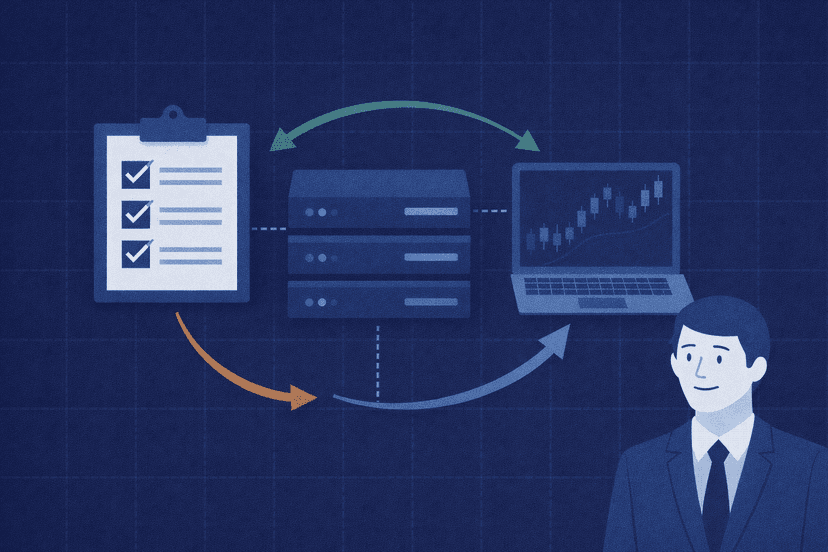
Before you touch a single install file, get these five things in order. A few minutes here saves hours of troubleshooting later.
- A funded IBKR account (or a paper account). You need working IBKR credentials. It is strongly recommended you test the entire setup with your paper-trading username first, then switch to live once everything works. IBKR offers a free trial if you do not yet have an account.
- A VPS with the right specs and location. IB Gateway is light, but TWS and the Java runtime want headroom. Aim for at least 2 CPU cores and 4 GB RAM for a comfortable single instance; 4 GB is a sensible floor if you run TWS with charts or multiple API clients. Choose a data-center region with a fast, stable path to the IBKR gateway you connect through — a New York location such as Equinix NY4 is a strong default for US-routed order flow. Latency matters for fills; our explainer on why latency is important for trading covers why proximity beats a fast home connection.
- Windows or Linux — both work. A Windows VPS lets you install and drive TWS or IB Gateway through a familiar graphical desktop over RDP. A Linux VPS runs IB Gateway headless over SSH, using less memory and rebooting faster, which suits pure API/algo deployments. This guide covers both paths.
- The IBKR Mobile app installed and registered for 2FA. This is your second factor for unattended logins. Install it on your phone and enroll it before you begin.
- Your API client ready. If you are automating in Python, the actively maintained successor to
ib_insyncisib_async(the originalib_insyncis no longer maintained). You do not need to write any strategy code to complete this guide — you only need to know which port and IP your client will use.

TWS vs IB Gateway: Which One to Run 24/7
Interactive Brokers gives you two ways to connect: the full Trader Workstation (TWS) and the lightweight IB Gateway. They share the same login and the same API, but they are built for different jobs.
TWS is the complete trading platform: charts, order tickets, scanners, watchlists, and the full graphical interface. It is heavier on CPU and memory, and it is what you want if you also trade manually or need to see the market visually. TWS can host the API too, so many traders run TWS on a VPS and point their algos at it.
IB Gateway is a stripped-down program that does one thing: maintain the connection and serve the API. It has no charts and only a minimal status window, so it uses far less memory and is the natural choice for unattended, headless, API-only deployments. For a pure algo box — especially on Linux — IB Gateway is the recommended option.
Two things are worth remembering. First, both programs impose the same IBKR session rules (daily restart/logoff and the weekly Sunday shutdown), so choosing Gateway does not free you from those constraints. Second, one important install detail applies to automation: to run either program unattended with the popular IBC helper, you must install the offline (standalone) version of TWS/Gateway, not the self-updating version, because the automation tool does not work with the self-updating build.
Step 1: Provision and Connect to Your VPS
First, deploy your VPS and get remote access. Expected outcome: a working remote session on a clean server you can install software on.
Windows path (RDP): Provision a Windows VPS, then connect using Remote Desktop (the Remote Desktop Connection client on Windows, or Microsoft Remote Desktop on macOS). Enter the server’s IP address, your administrator username, and password. Once connected you will see a normal Windows desktop running on the server. Immediately change the default administrator password and confirm the firewall is on.
Linux path (SSH): Provision a Linux VPS (Ubuntu is a common choice), then connect with ssh user@your-server-ip. Because IB Gateway is a Java GUI program, a headless server needs a virtual display. Install a virtual framebuffer so the program has a “screen” to draw on even though no monitor exists:
- Update packages:
sudo apt update - Install the virtual display and a helper:
sudo apt install xvfb x11vnc(Xvfb provides the headless display; x11vnc is optional but lets you view the GUI remotely when you need to). - On Linux you will also need
xtermfor the automation tool later:sudo apt install xterm.
Whichever OS you choose, lock the box down now rather than later. Restrict remote access to known IP addresses, use strong credentials, and keep the firewall tight — our checklist on keeping your forex VPS secure walks through RDP and SSH hardening step by step.
Step 2: Install TWS or IB Gateway
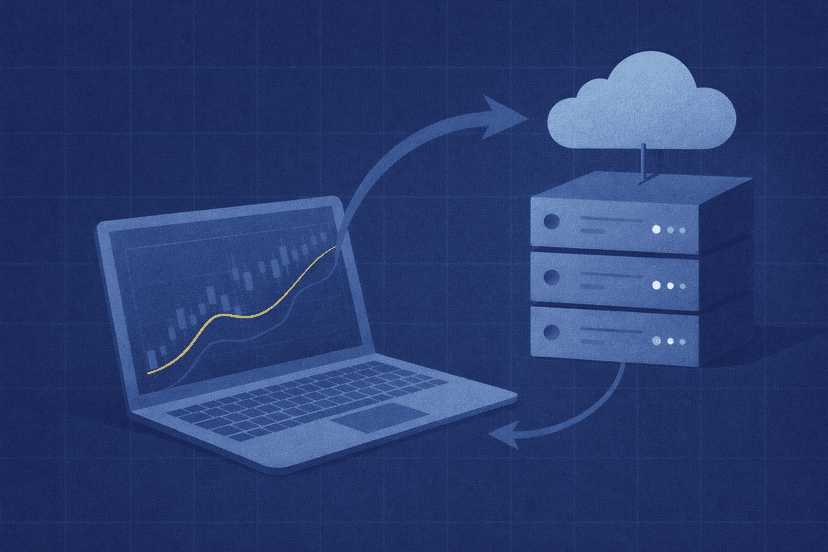
Next, download and install the IBKR software. Expected outcome: TWS or IB Gateway launches and shows a login dialog.
Download the offline version. On IBKR’s website, open the Trading or downloads menu and choose the offline / standalone installer for TWS or IB Gateway. The offline build does not silently update itself, which is exactly what you want for a stable, automated deployment. IBKR bundles its own Java runtime, so you do not need to install Java separately.
Windows: Run the downloaded installer and accept the default install path (typically C:\Jts). Launch the program from the desktop icon and confirm you reach the login window. Set the interface language to English if you plan to use IBC — the automation tool recognizes English dialog text.
Linux (headless): Make the installer executable and run it, for example chmod +x ibgateway-stable-standalone-linux-x64.sh then ./ibgateway-stable-standalone-linux-x64.sh. Accept the default path (usually ~/Jts). To launch the GUI on a headless box, start it under the virtual display, e.g. export DISPLAY=:10 and run it through xvfb-run. At this stage you are just confirming the login dialog appears; the always-on automation comes in Step 5.
Note the build/version number shown under Help > About — you will need the major version (for example, build 10.30.1 means major version 1030) when you configure IBC later.
Step 3: Log In and Handle 2FA
Now log in and deal with two-factor authentication honestly. Expected outcome: an authenticated session, and a clear understanding of how 2FA behaves for unattended running.
Enter your IBKR username and password (use paper credentials first). If your account has 2FA enabled — and for a live account it almost certainly does — IBKR sends a push notification to the IBKR Mobile app on your phone. You approve it on the device, and the login completes. There is an important limit to be honest about: you cannot fully automate this second factor away. The approval happens on your physical phone, and no VPS tool can press that button for you.
What the setup can do is make 2FA a once-a-week event instead of a daily chore. Because of how IBKR’s session model works, you authenticate once at the start of the trading week; after that, the daily auto-restart reuses your existing session credentials and does not require a fresh second factor. So in practice you approve one push notification early in the week (after the Sunday reset), and the platform then restarts itself each day without prompting you again — until the next weekly reset. Plan to be near your phone for that one weekly login.
If you hold multiple IBKR logins, IBKR also supports a “second factor for multiple simultaneous logins” arrangement in some cases, but for a single automated account the weekly-approval model above is what you will rely on.

Step 4: Enable the API (Socket Port and Trusted IPs)
With a session running, turn on API access so your code can connect. Expected outcome: TWS/Gateway listens on a socket port and accepts connections only from IPs you trust.
Open the API settings: in TWS go to File > Global Configuration > API > Settings; in IB Gateway go to Configure > Settings > API > Settings. Then:
- Enable ActiveX and Socket Clients. Tick this box — it is what opens the API socket at all.
- Set the socket port. The defaults are worth memorizing because mixing them up is the most common connection error. TWS uses 7496 for live and 7497 for paper. IB Gateway uses 4001 for live and 4002 for paper.
- Add trusted IP addresses. Under Trusted IPs, add the address of the machine your client runs from. If your algo runs on the same VPS as TWS/Gateway (the recommended, lowest-latency setup), that is
127.0.0.1. Restricting trusted IPs is a key safety control — do not open the socket to the whole internet. - Leave “Read-Only API” unchecked if your program needs to place or modify orders; leave it checked if you only want market data and monitoring.
To verify from Python with ib_async, a minimal connection looks like ib.connect('127.0.0.1', 7497, clientId=1) for a paper TWS session — swap the port for your program and mode. Each simultaneous client needs a unique clientId. That is as far as this guide goes into code; the point here is connectivity, not strategy. For the wider automation picture, our rundown of the algorithmic trading tech stack shows where the IBKR API fits alongside data feeds and execution tooling.
Step 5: Keep It Running 24/7 with IBC Auto-Restart
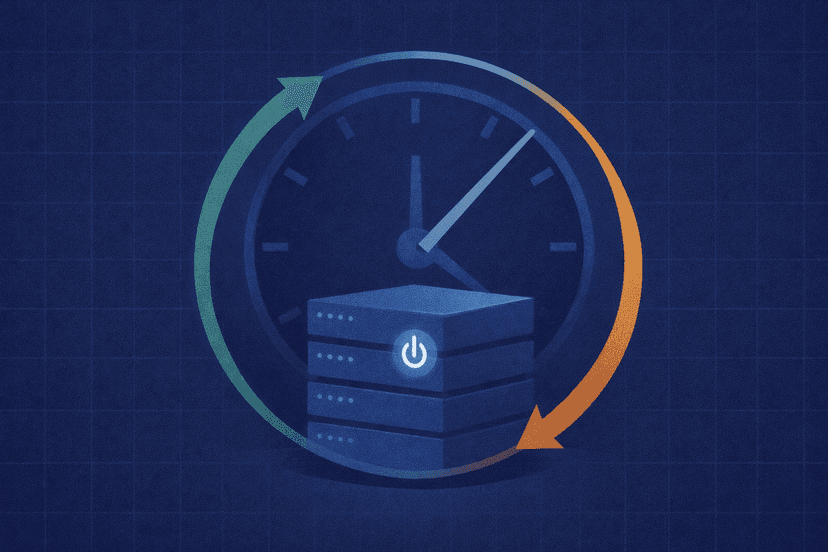
This is the step that turns a normal install into an always-on trading server. Expected outcome: TWS/Gateway starts automatically, logs in for you, and survives IBKR’s daily restart without manual clicks.
Left alone, IBKR requires either a daily auto-logoff (the platform shuts down at a set time and you must restart and re-authenticate) or a daily auto-restart (the platform shuts down and comes back using your existing session, no re-authentication). Auto-restart is what enables unattended 24/7 operation, and the widely used open-source tool for orchestrating it is IBC (IBController), actively maintained on GitHub.
The setup, at a configuration level:
- Install IBC for your OS (Windows or Linux ZIP) and copy its
config.inito a secure, user-private folder. - Edit
config.ini: setIbLoginIdandIbPassword, setTradingModetopaperorlive, and confirm the TWS major version in the start scripts matches your install. - Enable auto-restart: set the AutoRestart time in the Lock and Exit section of the TWS/Gateway configuration dialog (or the
AutoRestartTimesetting inconfig.ini). At that time each day, the platform restarts and reuses your credentials — no 2FA prompt. - Handle 2FA timeouts: set
ReloginAfterSecondFactorAuthenticationTimeout=yesso that if you miss the 3-minute approval window, IBC re-initiates the login and re-sends the alert.
Windows: Start IBC via StartTWS.bat or StartGateway.bat, and schedule it with Windows Task Scheduler using the /INLINE argument and the “Run only when user is logged on” option so you can see and interact with the window.
Linux (headless): Start IBC via twsstart.sh or gatewaystart.sh under your virtual display, and use cron to launch it (the scripts detect an already-running instance, so a periodic cron entry safely restarts it after a crash). Remember to export DISPLAY to match your Xvfb display in the cron line.
The one rule no tool bypasses: IBKR invalidates session credentials once a week, so you must fully authenticate again after the Sunday reset (credentials expire around 01:00 ET Sunday). Everything else can be automated; that single weekly login cannot.
Step 6: Verify Connectivity and Uptime
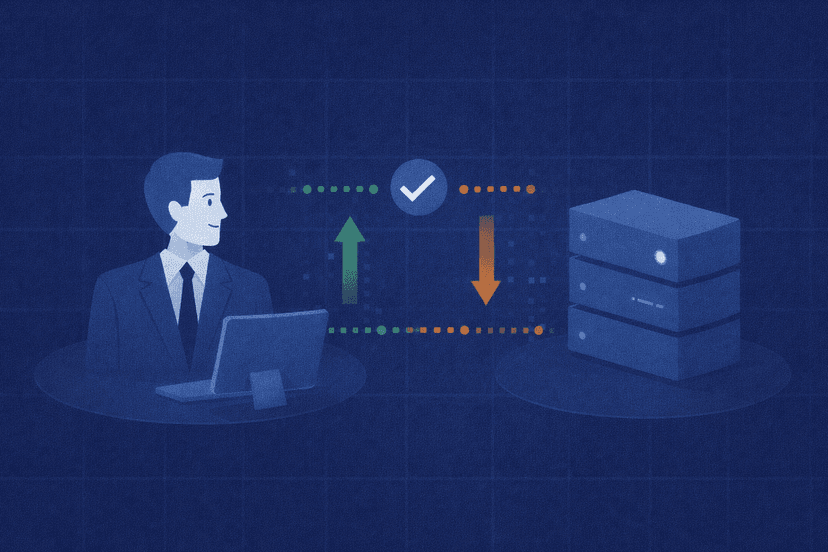
Finally, confirm the whole chain works end to end. Expected outcome: your API client connects, receives data, and the platform recovers on its own after a restart.
- Confirm the API is listening. With TWS/Gateway logged in, check that your chosen port (7497, 7496, 4002, or 4001) is open locally.
- Run a minimal client connection. Point
ib_async(or the raw TWS API) at127.0.0.1and the correct port with a uniqueclientId. A successful connect plus an account summary or a market-data request confirms end-to-end connectivity. - Test the daily restart. Set the AutoRestart time a few minutes ahead, watch the platform shut down and return on its own, and confirm your client reconnects afterward (build automatic reconnection into your code — sessions do drop at restart).
- Watch resource use. Keep an eye on CPU and memory for the first day, especially if you run full TWS with charts.
Once verified, you have an unattended IBKR trading server.
Troubleshooting Common IBKR VPS Problems
Most issues fall into a handful of predictable buckets. Here is how to diagnose and fix them.
Platform logs out every day and does not come back. You are on auto-logoff instead of auto-restart. Switch to AutoRestart in the Lock and Exit settings (or via IBC’s AutoRestartTime), and make sure IBC’s start script keeps running so it can reload the session.
Everything dies on Sunday. That is expected. IBKR expires session credentials weekly, so a full re-authentication (including 2FA) is required after the ~01:00 ET Sunday reset. No tool can bypass this; schedule your weekly login around it.
2FA times out before you approve it. The IBKR Mobile approval window is about three minutes. Enable ReloginAfterSecondFactorAuthenticationTimeout=yes in IBC so a missed alert triggers a fresh login attempt instead of leaving you stuck.
API connection refused. Check, in order: is TWS/Gateway actually logged in; is “Enable ActiveX and Socket Clients” ticked; are you using the right port for the right program and mode; and is your client’s IP in the Trusted IPs list. A refused connection is almost always one of these four.
Paper vs live port confusion. Connecting your algo to the wrong port is a classic mistake. TWS: 7496 live / 7497 paper. Gateway: 4001 live / 4002 paper. If your “live” bot is silently hitting paper, it is a port mismatch.
Orders or data look wrong after a restart — check time sync. A VPS clock that has drifted can cause odd timestamp and data behavior. Ensure the OS time service is enabled and synced (Windows Time service, or an NTP client on Linux).
Sluggishness or crashes. This is usually memory. Full TWS with charts is far heavier than IB Gateway; if you are tight on RAM, switch the automated box to IB Gateway or size up to 4 GB or more. Headless IB Gateway on Linux is the leanest option.

Frequently Asked Questions
Should I run TWS or IB Gateway on my VPS?
For unattended, API-only automation, run IB Gateway — it is lightweight, uses less memory, and is built for headless operation, which makes it ideal on a Linux VPS. Choose TWS if you also want the full graphical platform for manual trading, charting, or visual monitoring. Both use the same login and the same API, and both are subject to IBKR’s daily restart and weekly reset rules, so the choice is about interface and resource use, not about uptime capability.
Can Interactive Brokers really run 24/7 on a VPS?
Almost. With IBC and auto-restart, TWS or IB Gateway will run unattended and reload itself through IBKR’s daily restart without a fresh login. The unavoidable exception is IBKR’s weekly maintenance: session credentials expire once a week (around 01:00 ET Sunday), so you must fully authenticate — including 2FA on your phone — at the start of each trading week. There are also brief IBKR server maintenance windows. So it is genuinely near-continuous operation with one scheduled weekly login, not literal uninterrupted uptime, and no guide can promise otherwise.
Is a Windows or Linux VPS better for Interactive Brokers?
Both work well. A Windows VPS is easier if you want a familiar desktop and to see TWS/Gateway over RDP, and Task Scheduler handles the daily restart cleanly. A Linux VPS is leaner and cheaper on resources, reboots fast, and runs IB Gateway headless with Xvfb plus a cron-driven IBC — the preferred setup for pure algo traders comfortable on the command line. Pick based on your comfort level; the trading capability is identical.
Do I even need a VPS to run the IBKR API?
Not strictly — you can run TWS or IB Gateway on your own PC. But a home setup is exposed to sleep, reboots, internet drops, and power cuts, any of which will disconnect your algos and can leave positions unmanaged. A VPS gives you an always-on machine with a stable, low-latency path to IBKR’s servers and no dependence on your personal computer, which is why automated and API traders overwhelmingly host on one.
Bottom Line: Your Always-On IBKR Setup
Running Interactive Brokers on a VPS comes down to six steps: provision and connect, install the offline TWS or IB Gateway, log in and approve 2FA once for the week, enable the API on the right port with trusted IPs, automate the daily restart with IBC, and verify the connection. Honor IBKR’s two hard rules — the daily restart and the weekly Sunday re-authentication — and everything in between runs hands-free.
NYCServers gives you the always-on foundation for it: dedicated Windows or Linux VPS instances in major financial data centers including Equinix NY4, with 1ms-class latency to popular venues, a 100% uptime guarantee during trading hours, and 24/7 support. Spin up a trading VPS close to the market, install IB Gateway, and let your strategies run without a home-PC disconnect ever taking you offline.

About the Author
Thomas Vasilyev
Writer & Full Time EA Developer
Tom is our associate writer, and has advanced knowledge with the technical side of things, like VPS management. Additionally Tom is a coder, and develops EAs and algorithms.