
Why cTrader Lags on Your PC (and How a VPS Fixes It)
cTrader lag on your PC comes from two causes: local machine limits and network or uptime problems. Here is how to diagnose each and how a VPS fixes it.
What cTrader Lag Actually Looks Like (and Its Two Root Causes)
If your platform stutters when you scroll a chart, quotes freeze for a second and then jump, or a cBot fills later than it should, you are dealing with cTrader lag — and the fix depends entirely on what is causing it. The frustrating part is that the same symptom can come from two completely different places, and treating a network problem like a hardware problem (or the reverse) wastes hours.
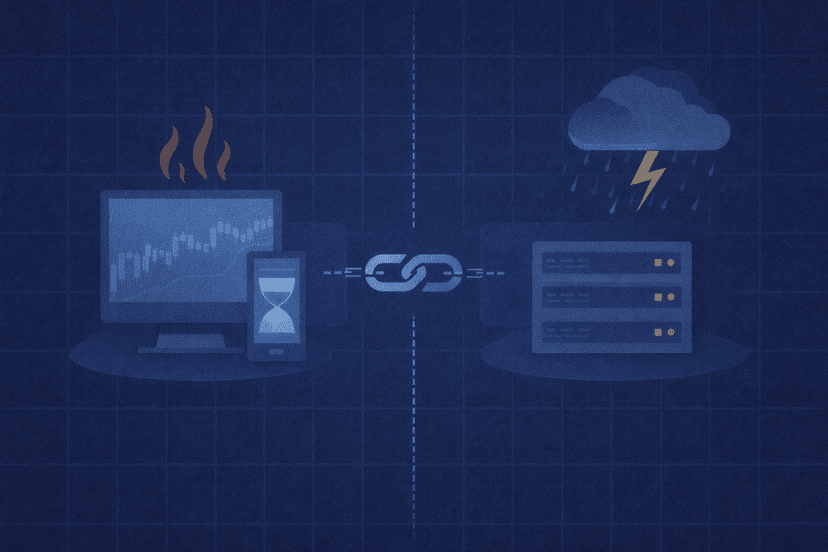
Every case of cTrader lag falls into one of two buckets. The first is local machine and software limits: your PC is under-powered for how many charts and indicators you have open, background apps are eating RAM, or your graphics drivers are stale. These you can fix on your own computer. The second is network and uptime problems: residential internet jitter, Wi-Fi drops, a long distance between you and your broker’s server, or a PC that sleeps and reboots mid-session and kills your running cBots. Those you cannot fix on a home machine no matter how fast it is — and that is exactly where a VPS earns its keep.
This guide walks through both buckets in order: first the local fixes you should try today, then the network and uptime causes, and finally how moving cTrader to a VPS removes the entire second bucket at once. We will also be honest about what a VPS does not fix, so you do not spend money on the wrong problem.
Prerequisites: What You Need Before You Start
Before you change anything, gather a little information so you can tell which bucket you are in. A few minutes of preparation here saves you from chasing the wrong fix.
- Your PC’s actual specs. Note your CPU, installed RAM, and operating system version. cTrader’s published minimum is a dual-core CPU with 2 GB of RAM on Windows 7 or higher; the recommended baseline is a dual-core CPU with 4 GB of RAM on the latest version of Windows. If you are at or below the minimum — especially on RAM — that alone can explain the lag.
- A baseline of when it lags. Does it stutter only when many charts are open, only during fast news moves, or randomly at all hours? “Only under load” points to the local bucket; “randomly, even with one chart” points to the network bucket.
- Your broker and server region. Know which broker’s cTrader server you connect to and roughly where it is hosted. Distance between you and that server is a core driver of quote and fill delay.
- Whether you run cBots. If you use cTrader Automate to run cBots, uptime matters far more for you, because a sleeping or rebooting PC stops your automation cold. cBots run inside the cTrader desktop app on Windows or Mac, so the app has to stay awake and connected for them to work.
- A demo or spare account for testing. Test changes without risking a live position, especially before and after moving automation to a server.

Local Causes You Can Fix on Your PC
Start here if your lag shows up mainly under load — lots of charts open, heavy indicators, or when other programs are running. Work through these steps in order and re-test after each one so you know which change helped.
Step 1: Check your specs against cTrader’s requirements. Compare the RAM and CPU you noted earlier to the recommended baseline of a dual-core CPU and 4 GB of RAM. If you are running at 2 GB, the platform and your operating system are competing for memory, and that shows up as stutter and freezes. Adding RAM is often the single highest-impact local fix on an older machine.
Step 2: Trim charts, indicators, and timeframes. Every open chart, every custom indicator, and every tick-history-heavy timeframe consumes CPU and memory. Close charts you are not actively using, remove indicators you are not trading off, and avoid stacking dozens of workspaces. If you run several instances or platforms side by side, resource planning matters even more.
Step 3: Close background apps and free up memory. Browsers with many tabs, video calls, cloud sync, and game launchers all fight cTrader for RAM and CPU. Close them before a session, and check your task manager for anything quietly eating resources. On a machine near the minimum spec, this alone can smooth out the UI.
Step 4: Update graphics drivers and clear the cache. Chart rendering leans on your GPU, so outdated graphics drivers can cause visible stutter when you scroll or zoom. Update to the current driver for your card, and if the platform has accumulated a large local cache of history, clearing and reloading it can help. Restart the app afterward so the changes take effect cleanly.
If the lag disappears after these steps, you were in the local bucket and you are done. If it persists — or if it never correlated with load in the first place — you are almost certainly looking at the network and uptime bucket, which no amount of local cleanup will solve.
Network and Uptime Causes a Home PC Can’t Fix
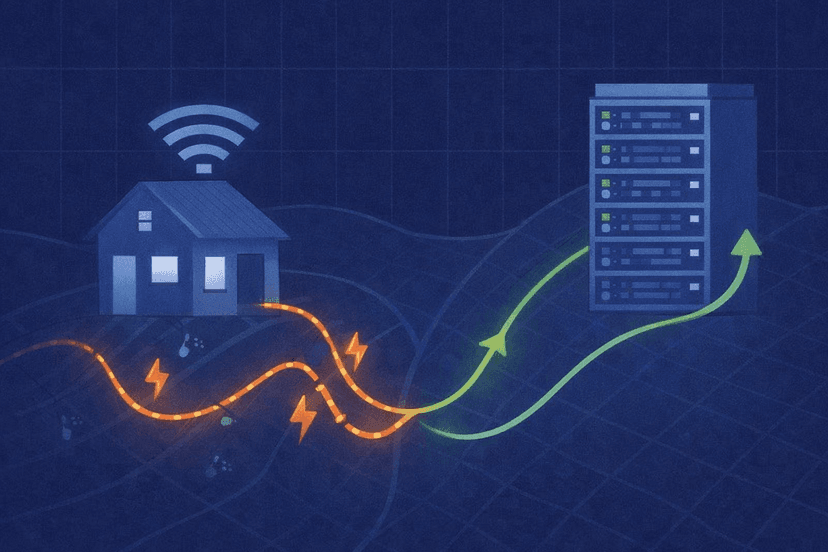
This is the bucket most traders miss, because it has nothing to do with how powerful your computer is. A brand-new gaming rig on home internet can still show delayed quotes and late fills, because the bottleneck is the path between you and your broker — not the box on your desk.
There are four culprits here, and they compound each other:
- Residential internet jitter. Home connections are shared and variable. Latency that averages fine can spike for a fraction of a second at exactly the wrong moment, and in trading that spike is a delayed quote or a slipped fill.
- Wi-Fi. Wireless adds an unstable hop between your PC and router — interference, congestion, and packet loss that a wired connection avoids. Trading over Wi-Fi is one of the most common invisible causes of stutter.
- Distance to the broker’s server. The physically farther you are from your broker’s cTrader server, the longer every quote and order round-trip takes. This is pure geography, and it is why professional setups care so much about where they host. Our explainer on why latency is important for trading breaks down how those milliseconds translate into slippage.
- Sleep, reboots, and disconnects. A home PC sleeps, installs updates, drops Wi-Fi, or loses power. Every one of those events disconnects your platform — and if you run cBots, it stops your automation until you notice and restart it.
You cannot fix geography or residential-grade internet from your living room. You can move to a wired connection and that helps, but the distance to your broker and the reliability of a consumer ISP are structural limits. That is the exact problem a VPS is built to remove.
How a cTrader VPS Fixes the Lag
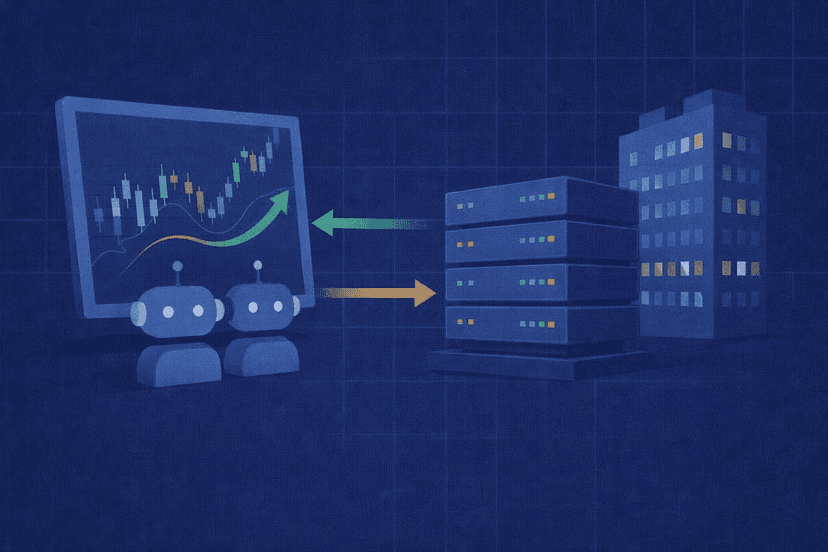
A VPS (virtual private server) is a computer that lives in a professional data center and runs cTrader around the clock, independent of your home machine. You connect to it remotely, but the platform and your cBots run on the server — on a business-grade network, close to your broker, and always on. That directly dismantles the entire network-and-uptime bucket.
Here is what changes when cTrader runs on a well-placed VPS:
- A stable, wired-grade network path. Data-center networking does not suffer the jitter and packet loss of home Wi-Fi and residential ISPs. Quotes arrive consistently, and orders leave without a variable delay bolted on.
- Physical proximity to your broker. Hosting in a data center near your broker’s server collapses the geographic distance that inflates your round-trip time. This is the single biggest lever for execution speed, and it is impossible to pull from home.
- True 24/7 uptime. The server never sleeps, never reboots for a Windows update at the wrong moment, and never loses your Wi-Fi. Your cBots keep running whether your laptop is open or shut. For automation specifically, this is the difference between a strategy that runs and one that silently stops.
- Your PC is freed up. With cTrader running on the server, your local machine is no longer the bottleneck. You can close your laptop and the trading continues.
The broader case for offloading a trading platform to a server is the same one that applies across every platform; our rundown of the top benefits of running cTrader on a VPS lays out the uptime, latency, and security gains in full. If you want a hosted cTrader environment ready to go, our cTrader VPS hosting is built for exactly this.
Be honest about what a VPS does not fix. A VPS solves the network, distance, and uptime bucket. It does not fix a broker-side price-feed problem, an inefficient cBot that is heavy by design, or a genuinely under-powered server plan. If your lag is local and load-driven, size the VPS appropriately rather than assuming any server automatically ends the problem.
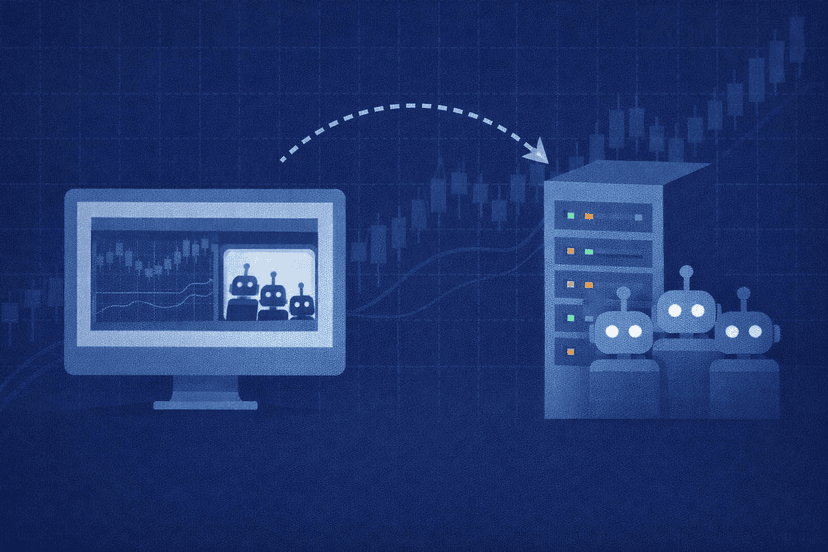
Step-by-Step: Moving cTrader and Your cBots to a VPS
Migrating is straightforward. The goal is a clean server running cTrader with your cBots, close to your broker, that you can leave running indefinitely.
Step 1: Choose a location near your broker. Pick a VPS in the data center closest to your broker’s cTrader server — for many brokers that is a major hub like New York, London, or Tokyo. If you are unsure, a latency check to your broker from each location settles it. Getting this right is where most of your lag reduction comes from.
Step 2: Provision and connect. Deploy the VPS and connect to it remotely. Immediately change the default password and confirm the firewall is on before you install anything — the server will hold your trading credentials, so lock it down first.
Step 3: Install cTrader and log in. Download cTrader from your broker onto the server, log into your account, and confirm charts and quotes are flowing. Because the platform is now on a stable, well-placed network, this is where you should already notice steadier quotes than at home.
Step 4: Move your cBots and workspaces over. Recreate your workspaces and add your cBots through cTrader Automate on the server. Test them on a demo account first to confirm they behave exactly as they did locally before you point them at a live account.
Step 5: Leave it running. Disconnect your remote session and the server keeps trading. Your cBots run 24/7 regardless of whether your home PC is on, asleep, or offline.
Troubleshooting: Still Lagging After the Move?
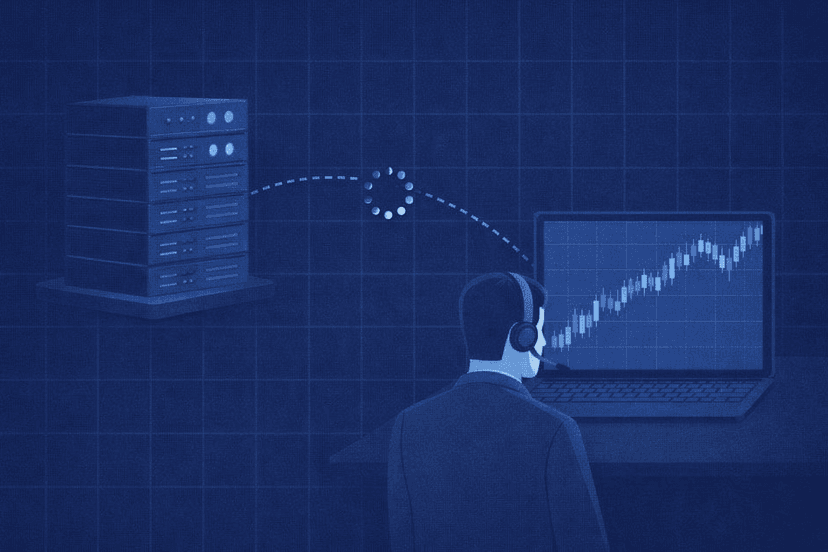
If cTrader still feels slow on the VPS, the remaining cause is almost always one of a few things. Here is how to diagnose and fix each.
Wrong data-center location. If quotes and fills are still delayed, your VPS may be far from your broker’s server. Re-check the latency from your VPS to the broker and, if it is high, move to a closer location. Proximity is the whole point; a distant server undoes the benefit.
An under-sized VPS plan. If the platform itself stutters — slow UI, laggy charts — under load, your server may be short on CPU or RAM for the number of charts and cBots you run. Size up, or split heavy workloads across instances the way you would locally.
A heavy or inefficient cBot. If one specific cBot spikes the server, the problem is the code, not the host. Profile it, reduce how often it recalculates, and trim unnecessary indicators — a VPS runs a bot faithfully, including a slow one.
A broker-side feed problem. If every trader on your broker sees the same delay at the same time, it is upstream of you and no VPS can fix it. Confirm by checking whether the lag tracks a specific broker event rather than your own setup.
Remote-session confusion. Remember that any lag in your remote desktop view is just the screen-sharing connection, not your trades. The platform and cBots execute on the server at full speed regardless of how smooth your remote window looks.
Frequently Asked Questions
Why does cTrader lag even though my PC is fast?
Because raw PC power only addresses one of the two causes of cTrader lag. If the problem is network jitter, Wi-Fi, distance to your broker’s server, or your PC sleeping and disconnecting, a fast processor does nothing — those are network and uptime issues that a VPS in a data center near your broker resolves.
Will a VPS fix cTrader lag for sure?
A VPS reliably fixes the network, distance, and uptime bucket: stable data-center networking, proximity to your broker, and true 24/7 operation. It does not fix a broker-side feed problem, an inefficient cBot, or an under-sized server plan, so match the VPS location and specs to your setup rather than assuming any server ends every lag.
Do my cBots keep running if I close my computer?
Yes, once cTrader runs on the VPS. The server stays on and connected around the clock, so your cBots keep trading whether your home PC is on, asleep, or offline. You only connect remotely when you want to check or change something.
Is remote-desktop lag the same as trading lag?
No. If your remote view of the VPS looks choppy, that is only your screen-sharing connection. cTrader and your cBots run on the server itself, so orders and quotes are processed at the server’s speed regardless of how your remote window feels.
What cTrader specs should I aim for to avoid local lag?
cTrader’s recommended baseline is a dual-core CPU with 4 GB of RAM on a current version of Windows. If you are near the 2 GB minimum, or running many charts and cBots at once, plan for more RAM and headroom — on a VPS, size the plan to the number of charts and bots you actually run.

About the Author
Matthew Hinkle
Lead Writer & Full Time Retail Trader
Matthew is NYCServers' lead writer. In addition to being passionate about forex trading, he is also an active trader himself. Matt has advanced knowledge of useful indicators, trading systems, and analysis.